

Branding and Login Page
Branding and Login Page
In an Enterprise installation, Stormbpmn does not have a public website: everything outside the application redirects to the login page. This is the first thing an employee sees. You can customize it for your company: display the name and logo, add your own welcome message and hints, set a brand color, and decide which support links employees will see.
Who is this page for
For the installation administrator. The configuration is required only once and takes a few minutes. Employees see the result immediately after saving.
What Can Be Configured
| Item | Where It Appears to the Employee |
|---|---|
| Company name and logo (light and dark) | At the top of the login page, next to the Storm logo. The Storm logo itself remains unchanged |
| Login page title | Above the form. If not specified, "Welcome to Storm" is displayed |
| Custom text | Above the login form: instructions, IT department contacts, links to internal resources |
| Brand color | Buttons and accents on the login page and within the application |
| Login methods | Login with username and password, SSO login, registration, password recovery |
| "Technical Support" and "Knowledge Base" links | At the bottom of the login page |
The login page also automatically displays the license expiration date ("License valid until ...") and the modules connected to your installation: AI and process simulation.
A valid license is required
Branding can only be configured with a valid Enterprise license. Without it, the server will reject the save with the message "Branding can only be configured with an active enterprise license." Only an administrator can upload logos.
Where to configure this
There are two places where these settings can be configured; the options are identical in both.
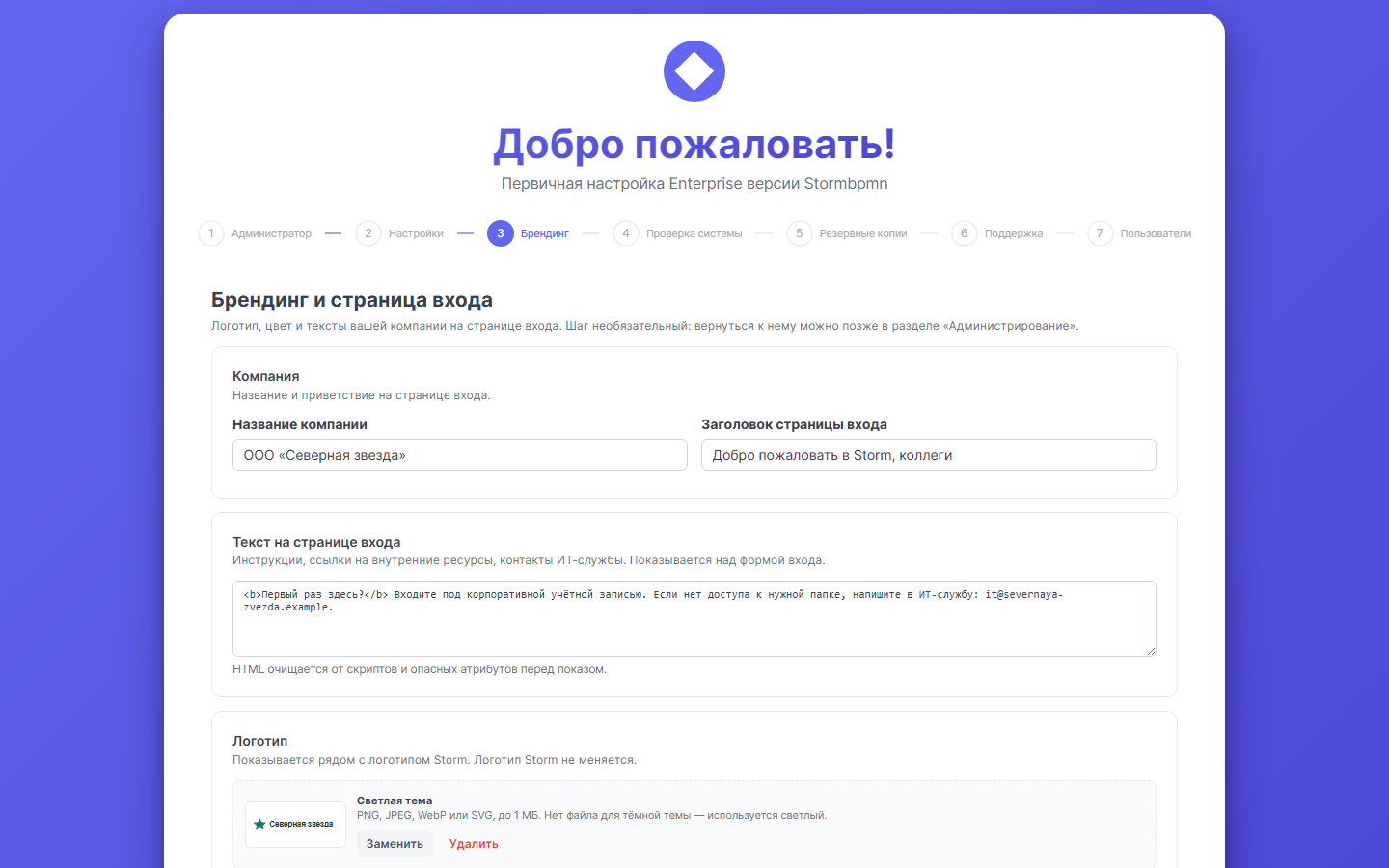
Initial Setup Wizard. The step named "Branding" (the third of seven steps) is titled "Branding and Login Page." This step is optional: the "Skip" button proceeds to the next step, while the "Continue" button saves the entered data and also proceeds. You can return to this configuration later.
Administration → "Branding and Login Page" tab. Until you open this tab, a NEW badge appears next to the tab name, and a hint with a "Configure" button is displayed at the top of the page.
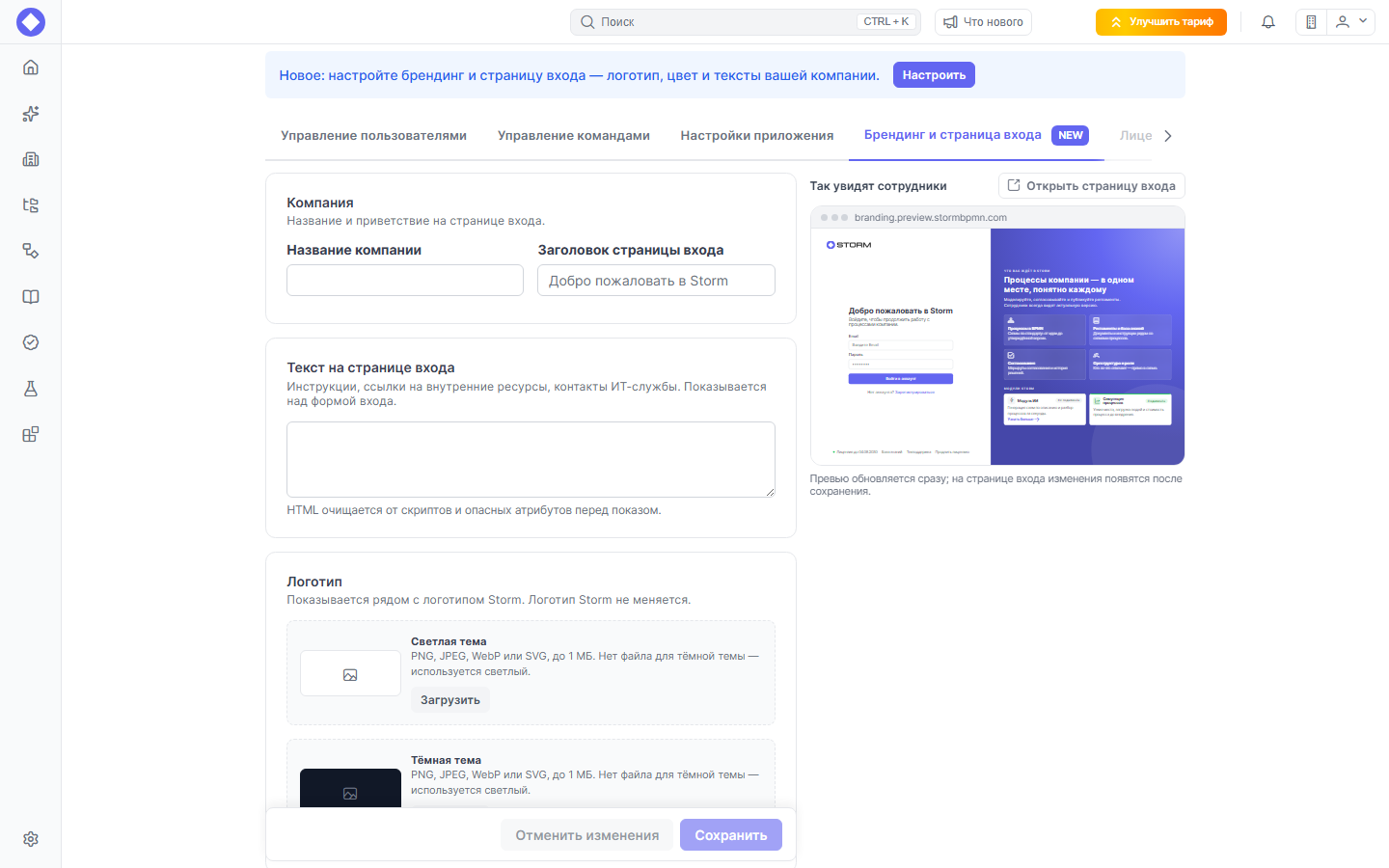
To the right of the form is a block titled "How employees will see it": this is a scaled-down copy of the login page. It updates in real time as you enter data. The "Open Login Page" button opens the actual page.
On the tab, changes accumulate and are sent to the server via the "Save" button; the "Discard Changes" button reverts to the saved values. Changes will appear on the actual login page only after saving. Logos are an exception: they are uploaded immediately, without requiring the "Save" button.
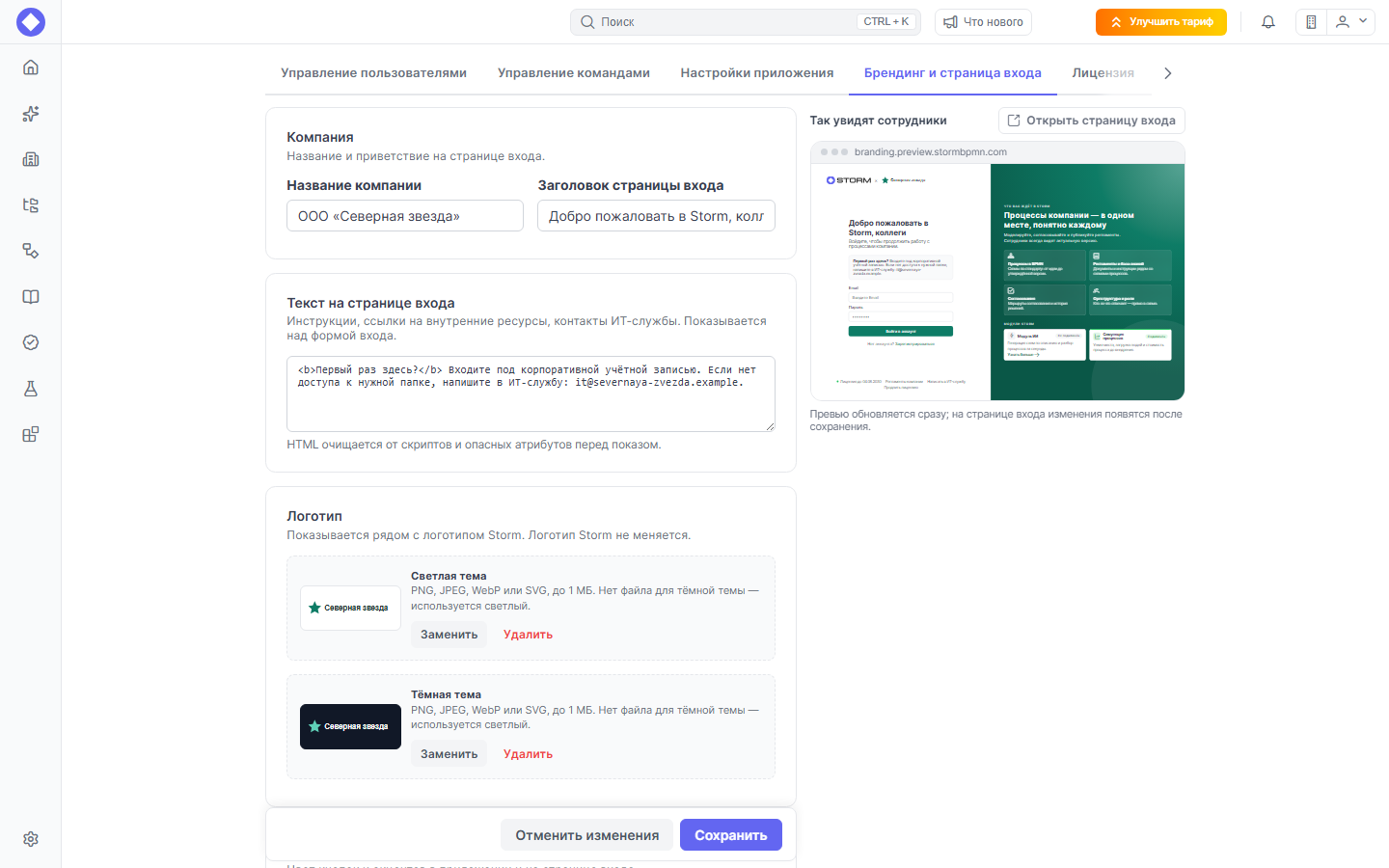
Step 1. Company name and heading
The "Company" block contains two fields:
- "Company name": for example,
ООО «Северная звезда». It is displayed next to the Storm logo. If a name is specified but no heading is set, the greeting will be: "Welcome to Storm, Northern Star LLC". - "Login page heading": a custom greeting instead of the default one. An empty field means the default heading.
Step 2. Custom text on the login page
The "Text on the login page" block is displayed above the login form. You can include the following information here:
- how to log in for the first time;
- who to contact if you do not have access;
- links to internal company resources.
The text is written as simple HTML markup: paragraphs, emphasis (<b>), links (<a href="…">). Before being displayed to the visitor, the markup is automatically sanitized of scripts and dangerous attributes, and images are resized to fit the width. Write static text without complex layout.
This is the same setting as before
The block is stored in the licensePageHtml setting, which was previously edited in the "Application Settings" tab. The filled-in value is preserved and will appear in the new form. For details on the license status page: "How licenses work".
Step 3. Logo
The Logo block has two slots for files:
- Light theme: the main logo;
- Dark theme: optional. If not provided, the light logo is used in the dark theme.
Click Upload and select a file. Once the logo is uploaded, the buttons change to Replace and Delete.
File requirements:
| Parameter | Value |
|---|---|
| Format | PNG, JPEG, WebP, or SVG |
| Size | No more than 1 MB |
| Shape | Horizontal logo with a transparent background; it is displayed next to the small-height Storm logo, so fine details are not legible |
SVG files are strictly validated. The server rejects SVG files containing any of the following items and displays the specific reason:
- scripts (
<script>); - embedded HTML (
<foreignObject>); - nested images and objects (
<image>,<a>,<object>,<iframe>,<embed>); - event handlers (
onload,onclick, and others); - links
javascript:; <!DOCTYPE>and<!ENTITY>;@importin styles;- external references in
href,src, andurl(…)(only internal references of the form#idare allowed).
If the file is rejected, re-export the logo from your graphics editor without these elements, or upload a PNG.
Step 4. Brand color
The Brand color block sets the color of buttons and accents in the application and on the login page. Select one of the preset colors (the first one is the standard Storm color), use the palette, or enter a code in #RRGGBB format, for example #0E7C66. If the code is in a different format, the form will indicate an error and prevent saving.
If no color is specified, the team color or the standard Storm color applies.
One color for all teams
Typically, each team selects its own color in the team settings. The "One color for all teams" toggle overrides this: the brand color is used everywhere.
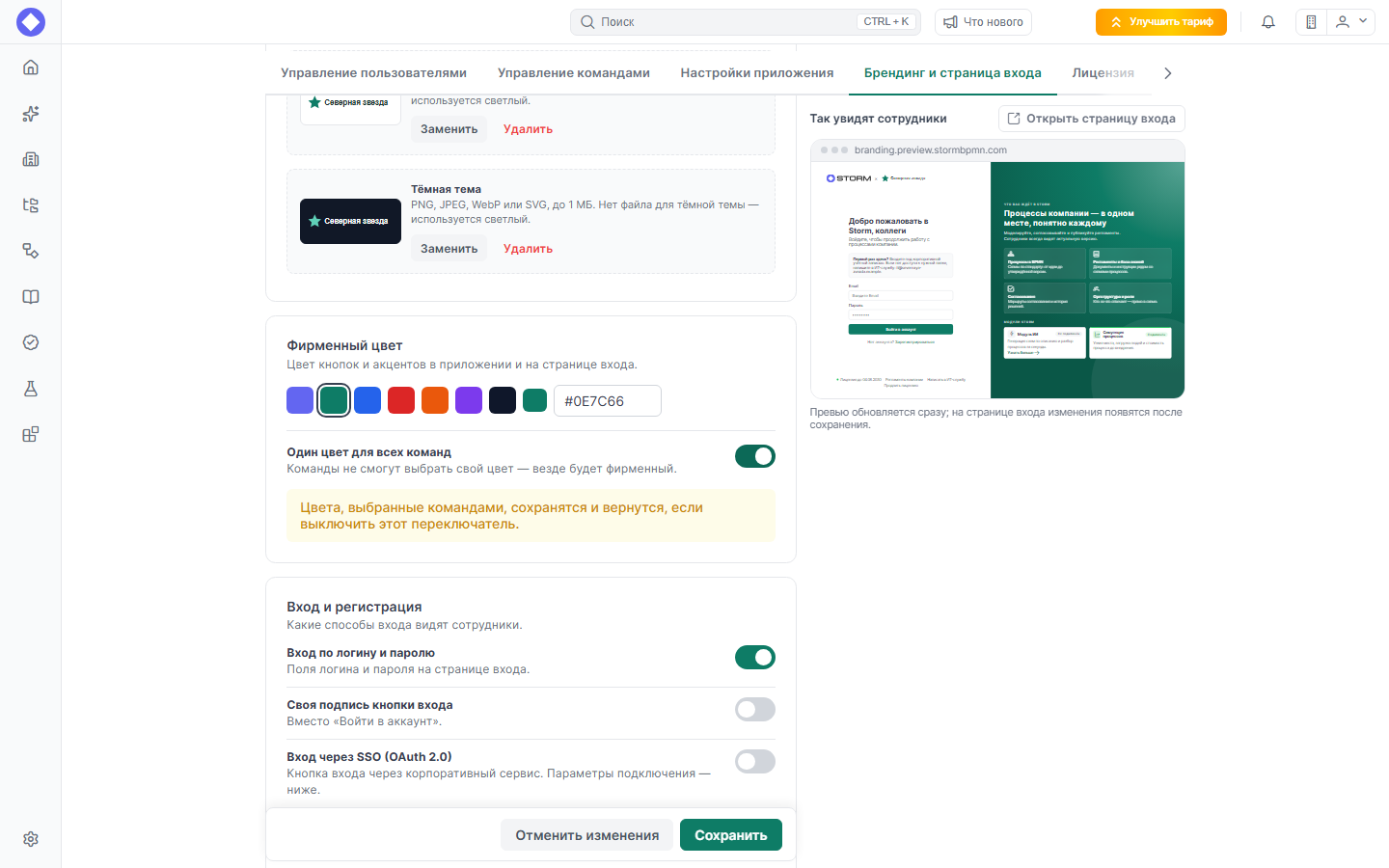
- Colors previously selected by teams are not deleted. They will be restored if the toggle is turned off.
- The toggle is active only when a brand color is defined.
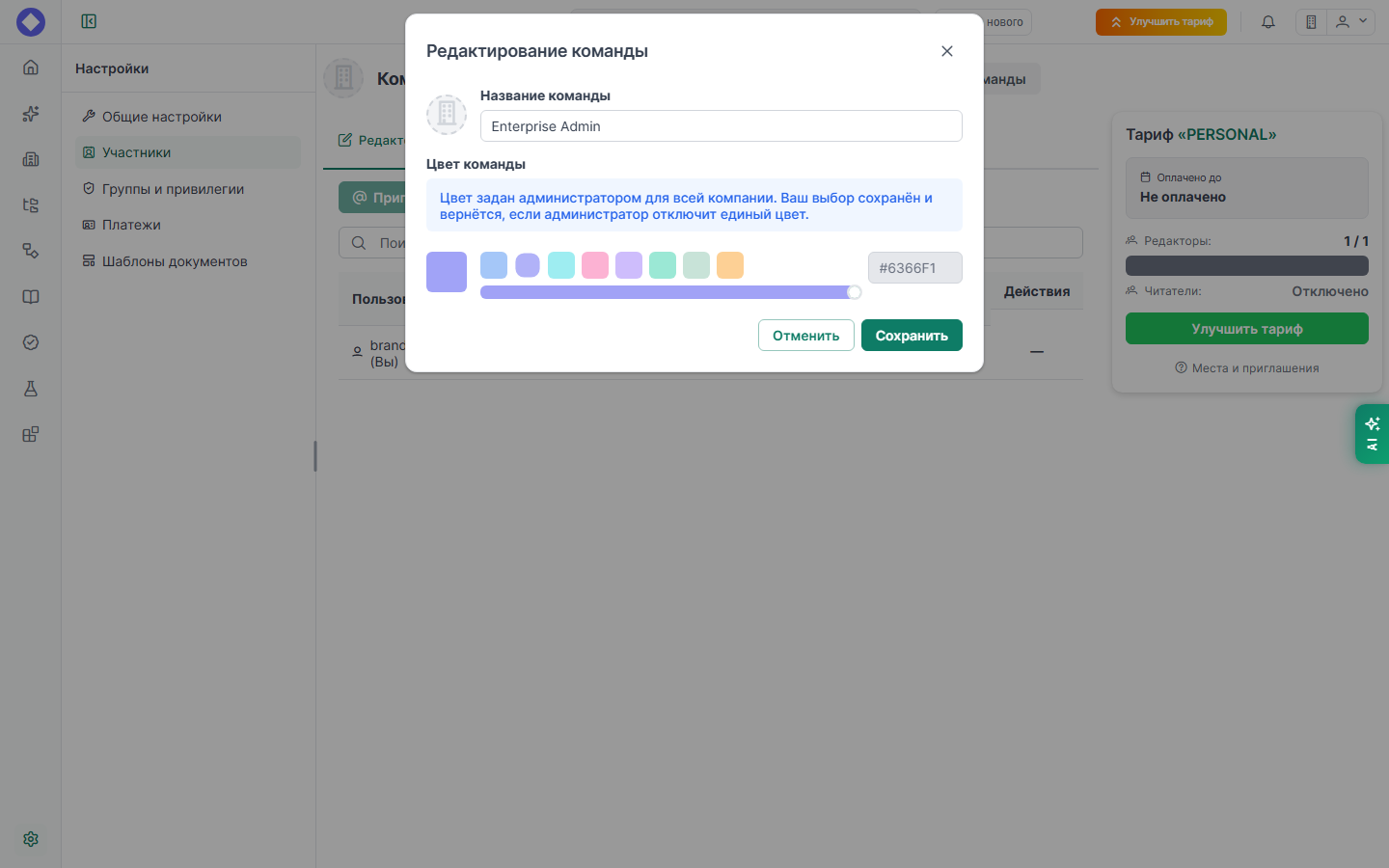
- When the toggle is enabled, an employee editing a team sees the message "Color is set by the administrator for the entire company. Your selection is saved and will be restored if the administrator disables the unified color," and the color selection is unavailable.
Step 5. Login methods and registration
The «Login and registration» block defines what employees will see in the login form.
| Parameter | Function |
|---|---|
| «Login with username and password» | Displays username and password fields |
| «Custom login button label» | Replaces the default «Log in to account» text with your own, for example «Log in with password». The field for the label appears after enabling this option |
| «Login via SSO (OAuth 2.0)» | Displays a button for logging in through a corporate service. The button label is set in the field below, for example «Log in via Company IS». Connection parameters are located in the collapsible block «OAuth 2.0 connection parameters» |
| «Self-registration» | Displays a «Register» link |
OAuth 2.0 connection parameters are described in detail in the «Authentication system» section.
You cannot disable all login methods
At least one of the two methods, login with username and password or login via SSO, must be enabled. Otherwise, no one would be able to log in, and the form will not allow saving such settings.
Password Recovery
The Reset Password link appears on the login page only when the server is capable of sending emails. Next to the Password Recovery item on the tab, a status indicator shows either Email configured or Email not configured.

If email is not configured, users will see the message “Contact the system administrator” instead of the link. This is intentional to prevent users from waiting for an email that will never arrive.
To enable password recovery, configure email sending via simple SMTP. These parameters are set using server environment variables and cannot be changed in the interface:
EMAIL_PROVIDER=smtp
SMTP_HOST=
SMTP_PORT=
SMTP_USERNAME=
SMTP_PASSWORD=
SMTP_FROM=
After changing the variables, restart the application. You can verify sending in the System Status tab. For details, see: “Simple SMTP”.
Step 6. Support and Knowledge Base
The Support and Knowledge Base block controls two links at the bottom of the login page. For each link, select a mode:
| Mode | What happens |
|---|---|
| "As in Storm" | The link points to the standard address: Storm support and documentation |
| "Custom link" | The link points to your resource. You must specify the Label (link text) and the Link |
| "Do not display" | The link is not shown on the page |
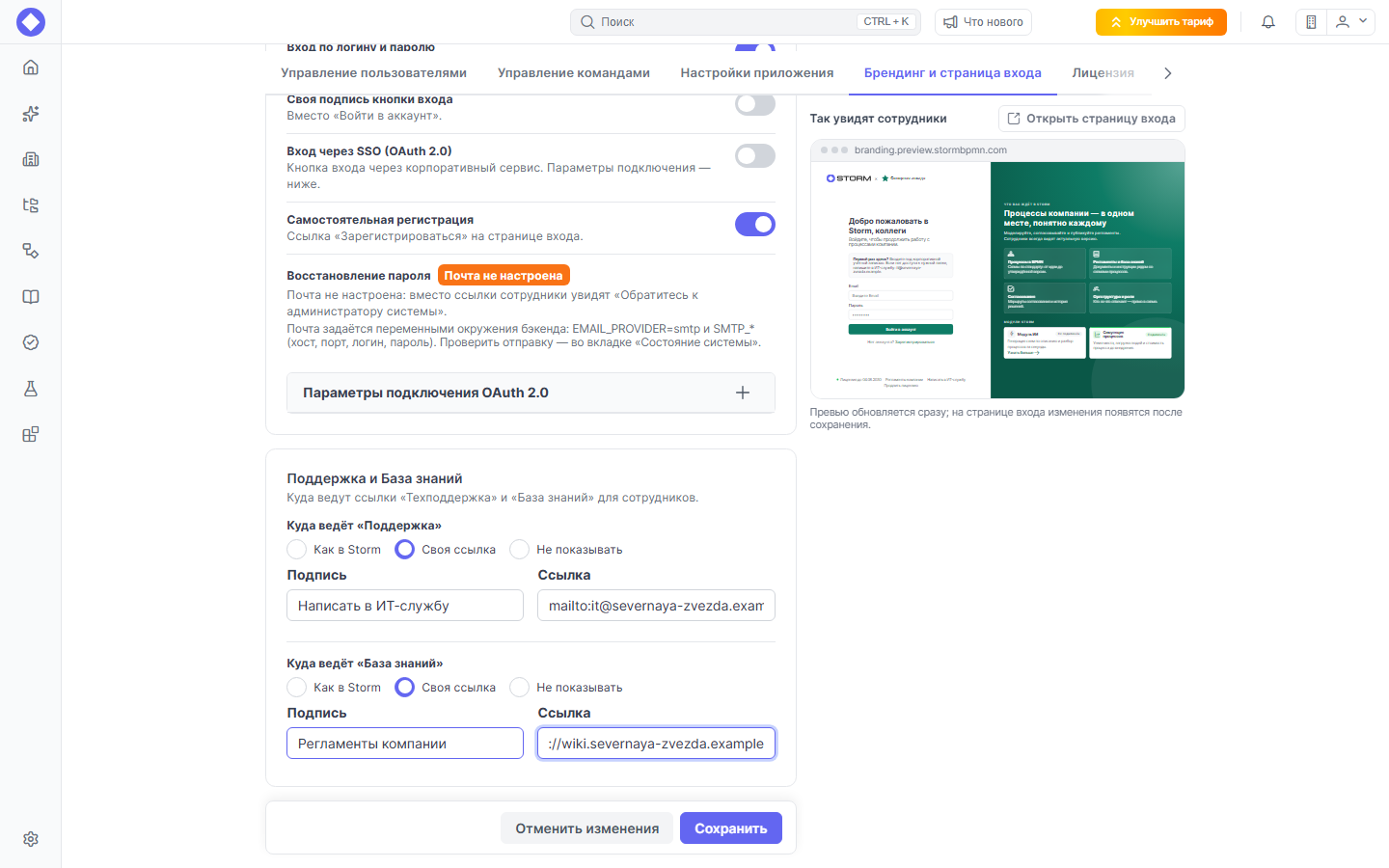
The link must start with http://, https://, mailto:, or tg://. For example, mailto:it@company.ru will open an email in the employee's mail client, and https://wiki.company.ru will open the internal wiki. If the address is written differently or the label is not specified, the form will not allow saving the settings.
What employees will see
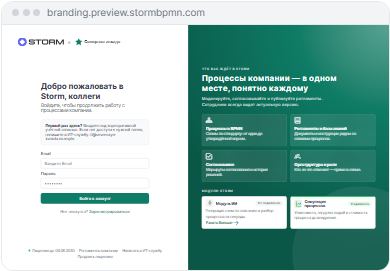
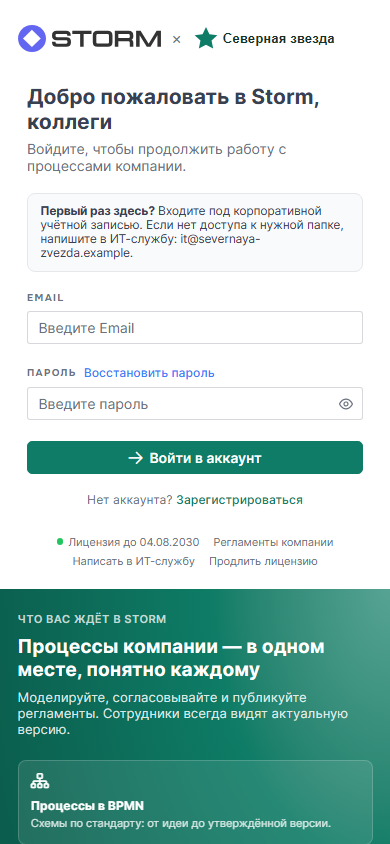
This is how the login page looks with the settings from the example: the name and logo next to the Storm logo, a custom heading, text above the form, a brand color, a "Reset password" link, two custom links, and the license expiration date at the bottom.
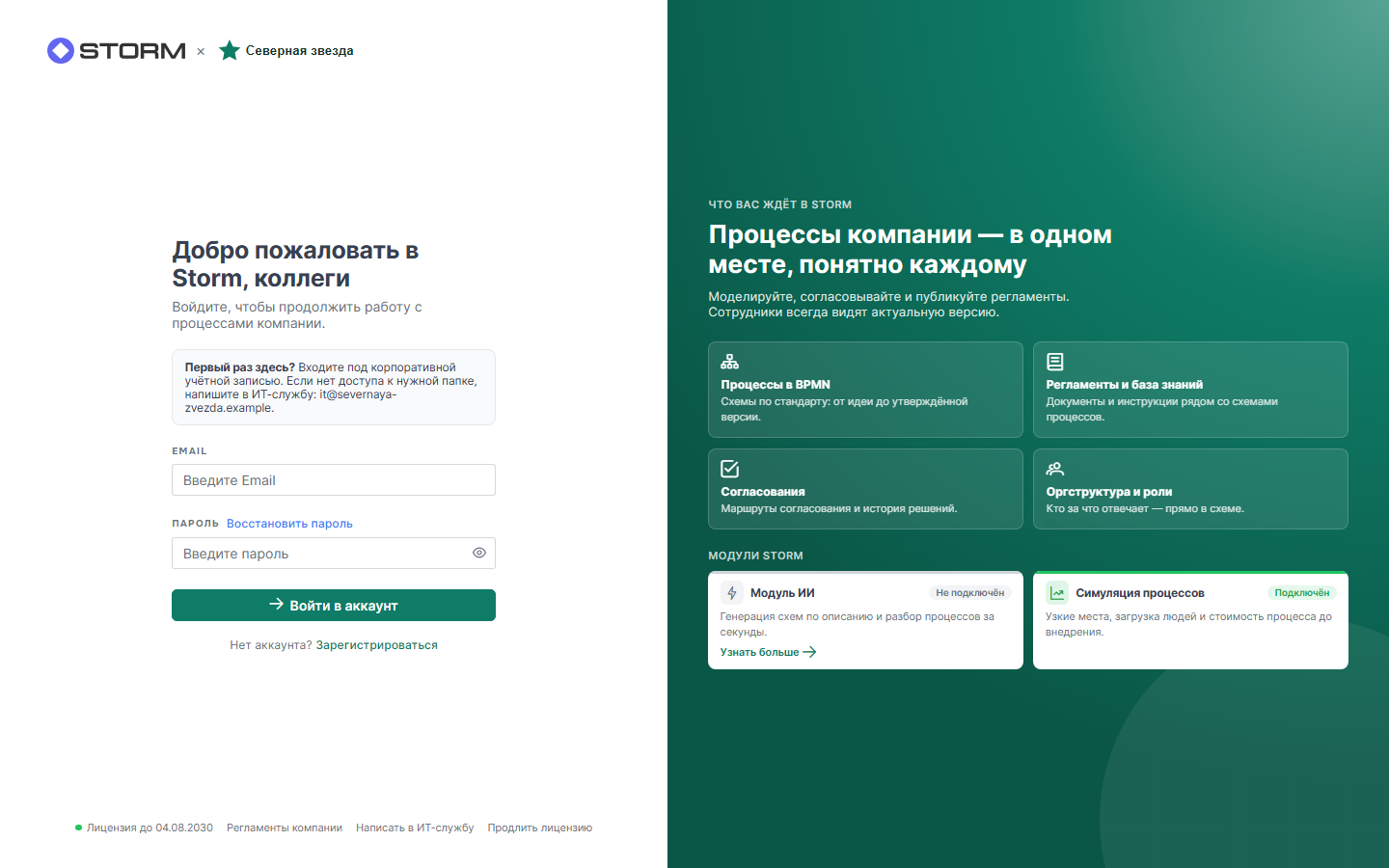
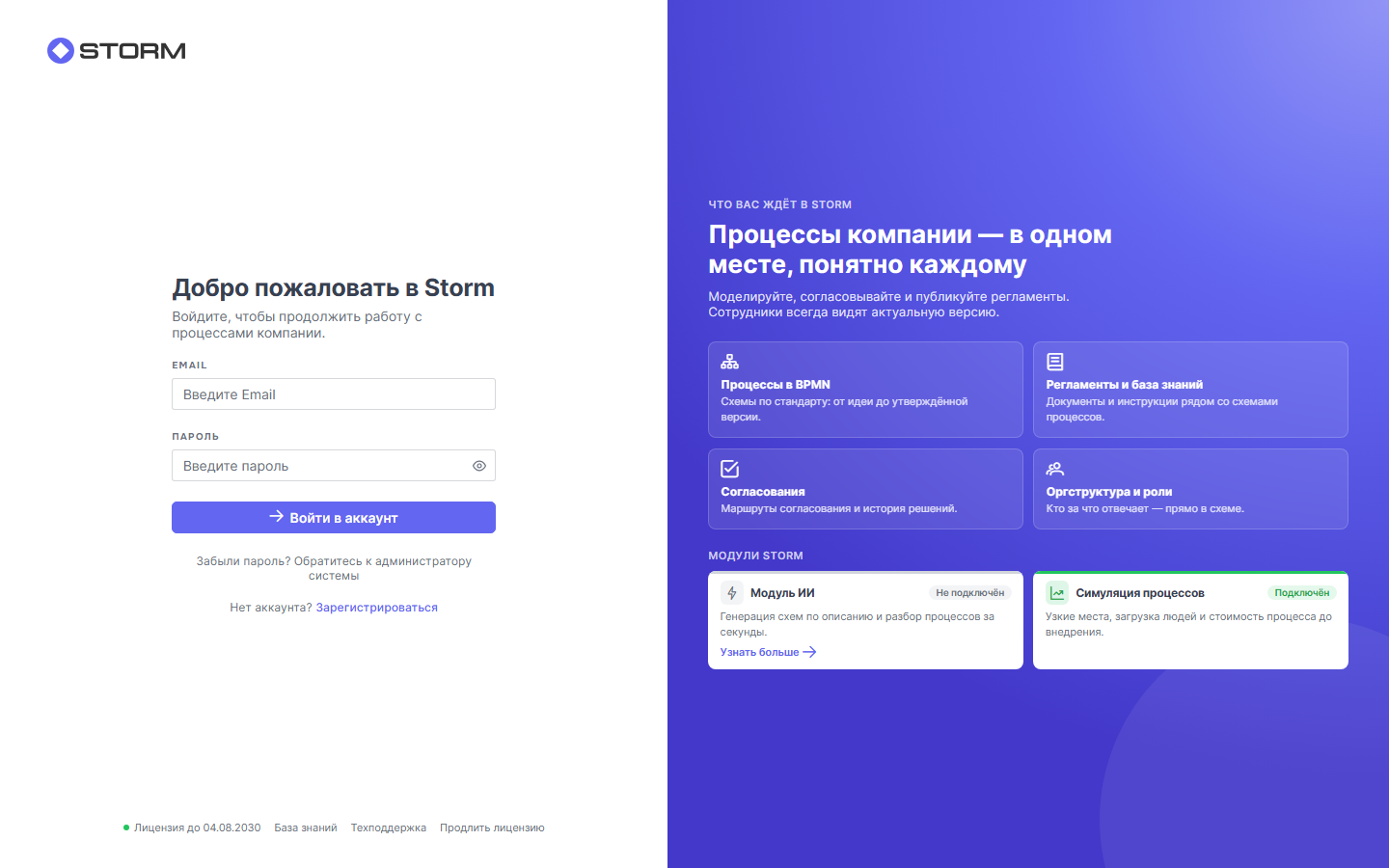
For comparison: this is how the page looks before any settings are configured.
On a phone, the columns are rearranged: the login form remains at the top, while the module information moves to the bottom.
Logging out of the application also takes the employee to the login page with your branding.
Frequently Asked Questions
Logo fails to upload: “SVG not accepted…” or “Only PNG, JPEG, WebP, and SVG are allowed.” Check the format and size (no more than 1 MB). For SVG, read the rejection reason in the message: most often, the file contains an embedded image, an external link, or <!DOCTYPE>. Export the logo without them or upload a PNG.
The “Reset Password” link is not visible. Email sending is not configured on the server. Set EMAIL_PROVIDER=smtp and the SMTP_* parameters, restart the application, and check the “Email configured” indicator on the tab.
The form does not allow saving. Read the red message above the buttons. Causes: both password login and SSO are disabled; the color is not recorded in the #RRGGBB format; your link has no signature, or the address does not start with http://, https://, mailto:, or tg://.
Saving is rejected with a message about the license. Branding is available only with a valid Enterprise license. Check the license expiration date and status in the “License” tab.
I saved the settings, but nothing changed on the login page. Refresh the page using the Ctrl+F5 shortcut. If you were authorized, log out and open the login page again. The “How employees will see it” block always shows the latest state, while the actual page receives the settings after saving.
Employees complain that they cannot select a team color. The “One color for all teams” toggle is enabled. Disable it, and the previous team colors will be restored.
How do I revert everything to the original state? Clear the fields, click “Delete” next to the logos, select the “As in Storm” mode for links, reset the color, and save.
Configuration Keys
For administrators who manage the installation through application settings. All these settings are public: the login page reads them before authentication, so visibility is enabled automatically and does not need to be changed manually.
| Key | Purpose |
|---|---|
brandCompanyName | Company name |
brandWelcomeTitle | Login page title |
brandLogo, brandLogoDark | Logo for light and dark themes. Set only by uploading a file |
brandPrimaryColor | Brand color #RRGGBB |
brandColorOverridesTeams | A single color for all teams (true or false) |
supportMode, supportLinkLabel, supportLinkUrl | "Technical Support" link: mode ⟦ mode storm, link or hidden, label, and address |
kbMode, kbLinkLabel, kbLinkUrl | "Knowledge Base" link: same as above |
licensePageHtml | Custom text above the login form |
showBasicLogin, showCustomLoginButtonName, CustomLoginButtonName, OAuthIsEnabled, OAuthButtonLabel, showRegistraton | Login methods and registration |
If these keys are edited through the general settings list, it is best not to modify the logo values: the file is uploaded via the button on the "Branding and Login Page" tab.